
How to Add Hindi AI Voiceover to CapCut Videos (3-Minute Method)
If you edit videos in CapCut, you have probably run into this: you want a Hindi voiceover, but CapCut's built-in text-to-speech either doesn't list a Hindi voice, sounds robotic, or behaves differently depending on your region and app version. Recording your own voice works, but it's slow — background noise, retakes, re-recording when the script changes.
There is a faster workflow: generate the Hindi voiceover with an AI text-to-speech studio like SynVoice, download it as an MP3, and drop it into your CapCut project. The whole process takes about three minutes once you have done it once. Here is the exact method, step by step.
Step 1 — Write a TTS-Friendly Hindi Script
The voice will only sound as natural as the script you feed it. A script written for reading on paper and a script written for a machine to read aloud are two different things. A few rules make a big difference:
- Write the way people speak, not the way essays are written. Short sentences. Everyday words. If you wouldn't say it out loud in conversation, rewrite it.
- Add punctuation where you want pauses. Commas and full stops control breathing. "Doston, aaj hum baat karenge..." pauses naturally after the comma. Remove punctuation where you don't want the voice to stop.
- Spell numbers out. "2026" may be read digit-by-digit in some contexts; "do hazaar chhabbees" reads the way a narrator would say it. Dates, prices, and percentages are worth the extra keystrokes.
- Avoid heavy English-Hindi mixing in one sentence unless the voice you choose handles it well. Hinglish narration is common in Indian YouTube, and modern Hindi TTS handles short English loanwords ("video", "subscribe") fine — but a sentence that flips languages mid-thought will trip almost any TTS engine. Preview and adjust.
- Break long scripts into chunks of 60–90 seconds. A 10-minute video script pasted as one block is harder to fix when one paragraph mispronounces something. Chunking lets you regenerate only the part that's wrong, and makes syncing to scenes much easier in Step 3.
- Read the script out loud to yourself once before generating. Any sentence that feels awkward to you will sound worse from the machine.
Step 2 — Generate the Hindi Voiceover in SynVoice
Now the actual voice generation. SynVoice is an AI text-to-speech voice studio with 38,000+ premium voices across 100+ languages, including Hindi, Urdu, Arabic, and Punjabi — so you are not stuck with one or two Hindi options. There is a live demo on the site and a free trial, which means you can test voices on your own script before spending anything. Here is the workflow:
- Open SynVoice and head to the voice studio.
- Pick a Hindi voice. Browse the voice library and filter for Hindi. Listen to 2–3 previews on your own niche's style of content — a calm narrator voice suits explainers and documentaries; an energetic voice suits shorts, reels, and tech reviews. Match the voice energy to your content type (more on this in the pro tips).
- Paste your script — one chunk at a time, following the chunking advice from Step 1.
- Generate and listen. Do a full listen-through of every chunk. Check for mispronounced names, brand terms, or English words. Fix the spelling in the script (slightly phonetic spelling often fixes pronunciation) and regenerate just that chunk.
- Download as MP3. Name the files in scene order (, …) so importing into CapCut is painless.
If the narration needs to sound like a specific person — your own voice for a faceless channel, for example — SynVoice also offers voice cloning. For most CapCut creators, though, the stock Hindi voices are more than enough, and plans start from $3.99 with a free trial to get started.

Step 3 — Import the MP3 into CapCut
With your MP3s ready, importing is straightforward on both mobile and desktop.
CapCut mobile (Android/iOS):
- Open your project and tap Audio in the bottom toolbar.
- Tap Sounds → Your sounds → From device (wording varies slightly by version) and select your MP3.
- The audio lands on the timeline as its own track. Drag it to align with the scene it belongs to.
CapCut desktop (Windows/Mac):
- Click Media → Import and select your MP3 files (or drag them straight into the media panel).
- Drag each clip down to the timeline's audio track, under the matching video scene.
One practical note: CapCut's own TTS lives under Text → Text to speech. Many creators find it limited: few Hindi voices, flat delivery, and availability that varies by region and account. The SynVoice route costs you one extra import step and buys you a much wider voice selection and noticeably more natural Hindi delivery.
Step 4 — Sync, Trim, Add Captions and Music, Export
Raw voiceover dropped on a timeline is not a finished video. This is where it starts sounding professional:
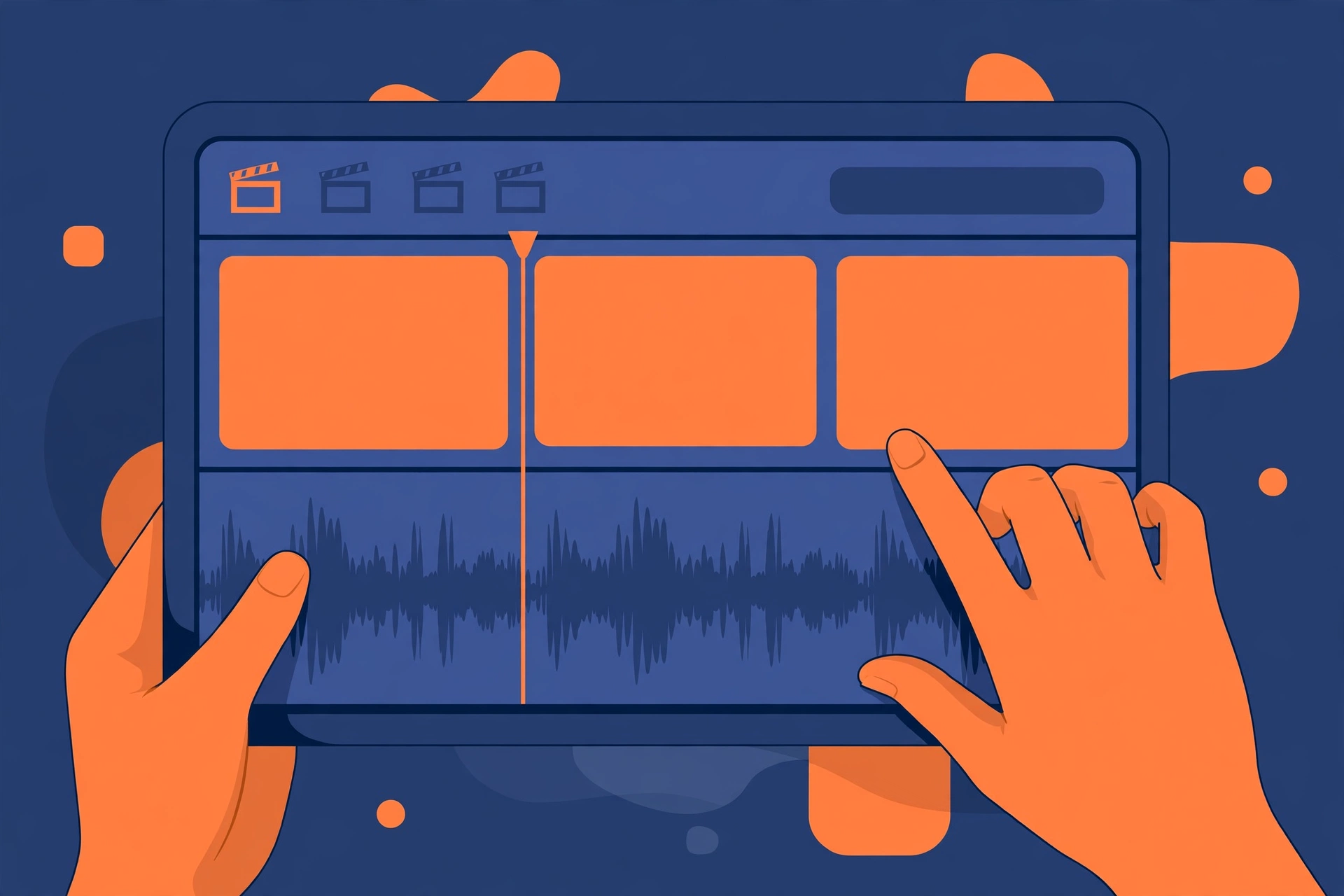
- Trim silence. AI voices sometimes leave small gaps at the start or end of a clip. Zoom into the waveform and cut the dead air so the narration starts crisply.
- Sync to scenes. Cut or stretch B-roll so each visual lands while the matching line is being spoken. When the narrator says "yahan dekhiye," the viewer should be looking at it at that moment, not two seconds later.
- Adjust speed if needed. Slowing the voice to 0.95x is usually inaudible; speeding past 1.1x sounds rushed. Better to trim the video than to chipmunk the voice.
- Add captions. CapCut's auto-captions (Text → Auto captions) work on imported audio too — generate them from your voiceover track, then fix Hindi transcription errors manually. A 30-second proofread pass is worth it.
- Duck the music. Keep background music at 10–20% under narration; keyframe volume so music dips when the voice starts and swells in pauses.
- Export. 1080p is the sweet spot for most platforms. For Shorts/Reels, set the project to 9:16 before you start — converting at export time crops your framing.
Pro Tips
Use punctuation as a director. A line like "Rukiye. Sochiye. Phir faisla kijiye." reads as three punchy beats. The same words without full stops blur together. You are effectively directing the AI narrator with commas and periods.
Split long scripts, always. Even beyond the pronunciation benefit: if your video is 8 minutes long and you change one line in minute 6, regenerating one 60-second chunk beats regenerating everything.
Match voice energy to content genre. A soft, slow voice on a fast-paced tech review feels wrong; a hyped voice on a meditation video feels worse. When browsing voices, test each candidate against your actual first line of script — not the default preview text.
Normalize loudness across chunks. If you generate chunks at different times or tweak settings between them, levels can drift slightly. CapCut's Audio → Loudness normalization (or a quick manual gain match by ear) keeps the narration consistent.
Keep an archive of scripts + MP3s. Client asks for one word changed three weeks later? If you still have the script and know which voice you used, the fix is a 2-minute regenerate instead of a full re-record.
Frequently Asked Questions
Is CapCut's built-in Hindi text-to-speech good enough?
Sometimes, but many creators find it limiting: the Hindi voice selection is small, the delivery is flat compared to dedicated TTS studios, and availability varies by region and app version. If you publish Hindi content regularly, generating the voiceover externally gives you more voices, better quality, and consistency across projects.
Which format should I export the voiceover in for CapCut?
MP3. CapCut imports it reliably on mobile and desktop, the files are small, and the quality is more than adequate for spoken narration. WAV works too but offers no audible benefit for voiceover at the cost of much larger files.
Will viewers be able to tell the voice is AI-generated?
Modern Hindi TTS is convincingly natural for narration-style content with a well-written script (see Step 1). That said, be transparent where it matters — undisclosed AI narration on content presented as a real person's testimony is a trust problem. When in doubt, disclose.
Can I use the same workflow for Urdu or other languages?
Yes — write the script, generate in a TTS studio that supports the language, import the MP3 into CapCut. SynVoice supports 100+ languages including Urdu, Hindi, Arabic, and Punjabi, so multilingual channels can keep one workflow and just switch the voice.
How much does the voiceover generation cost?
SynVoice offers a free trial so you can test Hindi voices on your own scripts at no cost, and paid plans start from $3.99. See the current pricing page for plan details — avoid locking yourself into any tool before you've tested its Hindi voices on your actual content.
Bottom line: CapCut is an excellent editor, but its Hindi voiceover options are its weak spot. Generating your narration with a dedicated AI voice studio and importing the MP3 adds about one minute to your workflow and upgrades the single most important element of a faceless video — the voice. Write the script for the ear, pick a voice that fits your genre, chunk your generation, and let CapCut do what it does best: the edit.